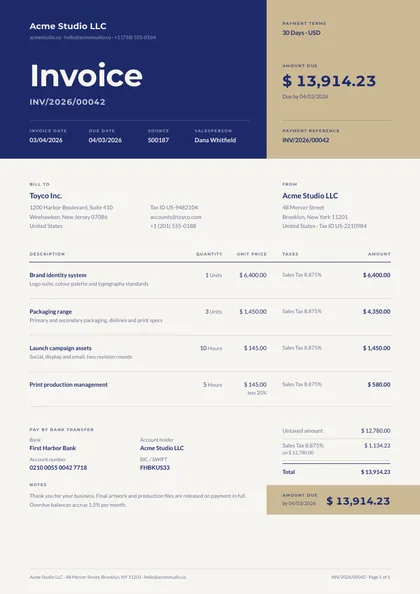
Band header · Royal & bone · Montserrat + Lato
expressive A4 portrait 1 page
See the full document
Use this template
A free, open-source Odoo module that renders your documents through pdfs.build instead of QWeb and wkhtmltopdf. Design the layout in the pdfs.build editor, map it to an Odoo model once, and every print path in Odoo picks it up: the Print menu, email attachments, the customer portal and batch prints.
Install and connect
Install pdfs.build PDF Templates from Odoo Apps or GitHub. In Settings, paste an API key and your organization ID, then click Test Connection.
Sync your templates
Sync Templates pulls every published template with its fields and sample data. Archive the ones that should not appear in Odoo; they stay archived on later syncs.
Map a model, then print
Pick the Odoo model. A design built for Odoo maps itself; any other template gets a prefilled expression to finish. The report appears in the Print menu, in emails and on the portal.
The module adds a pdfs.build app with Templates, Reports and Settings. Reports are ordinary Odoo report actions, so everything that already prints a report keeps working.
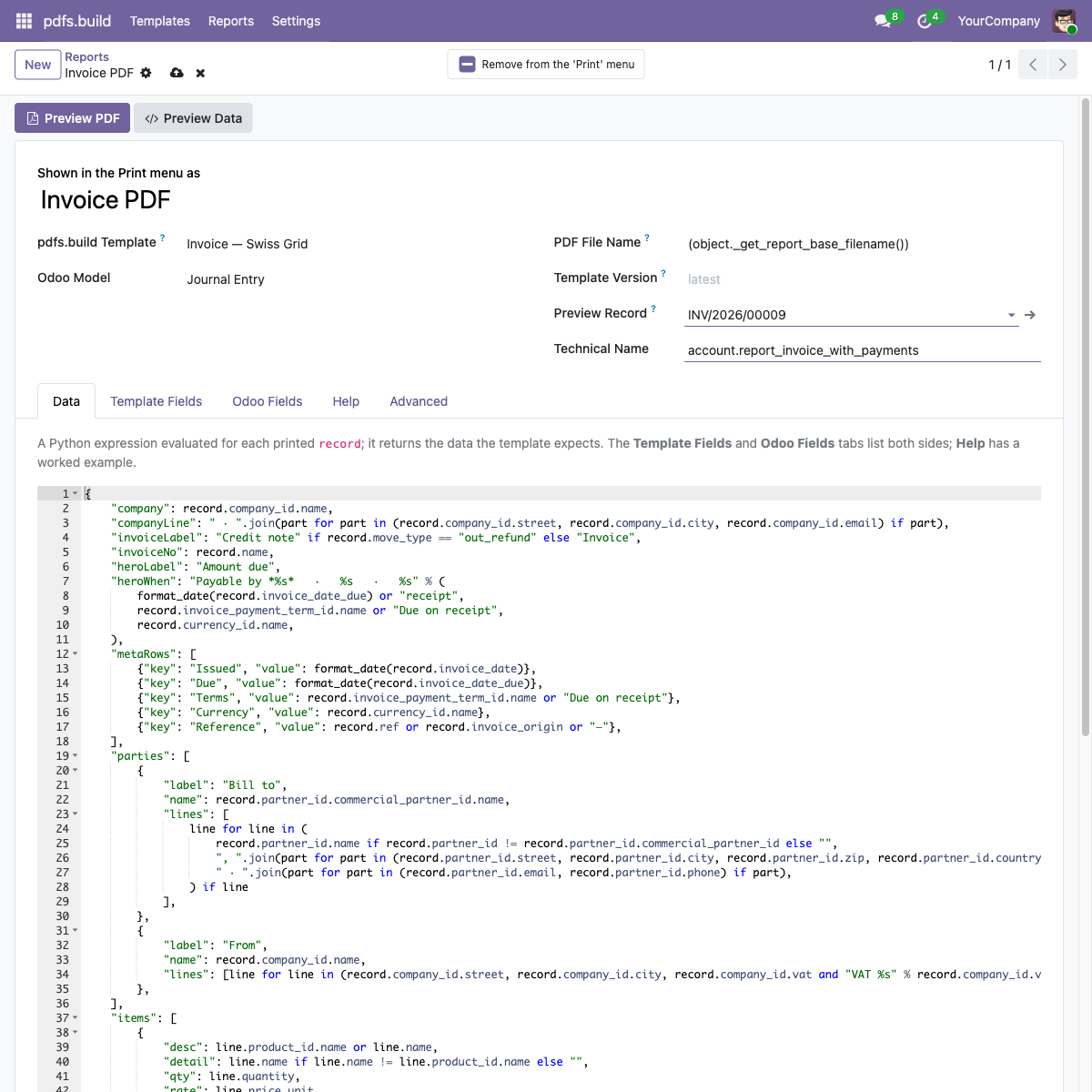
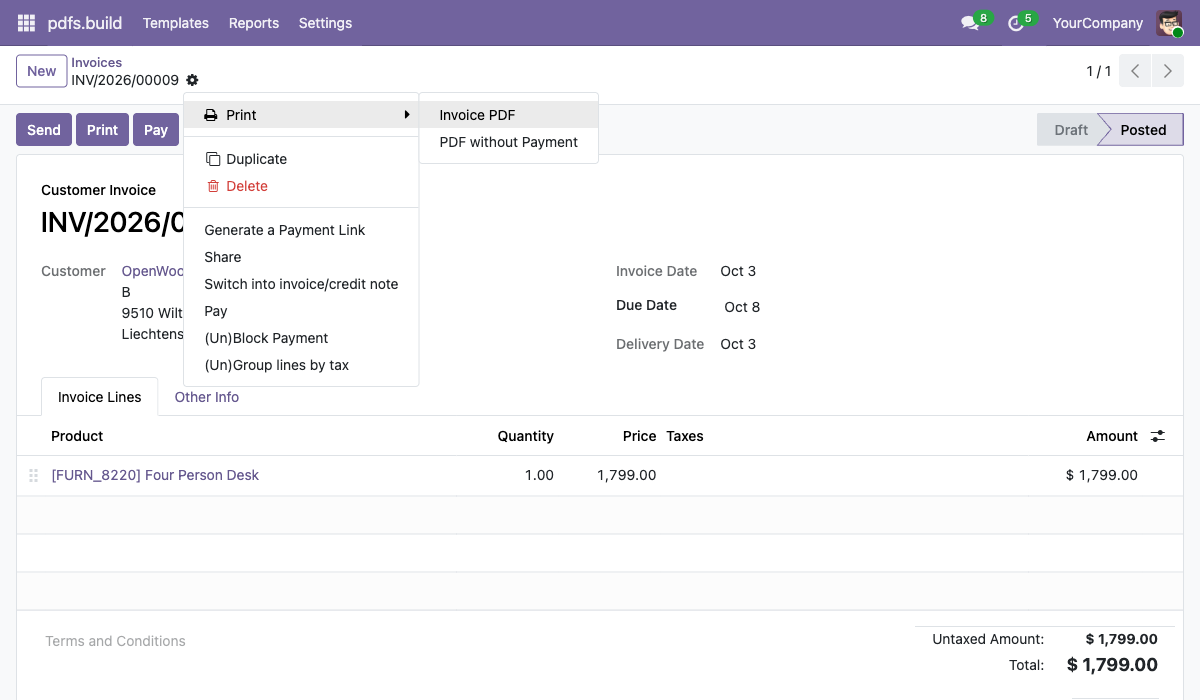
A report maps one Odoo model to one template with a Python expression that returns the template's data. Odoo prefills it from the template's JSON Schema, and the Template Fields and Odoo Fields tabs list both sides so the mapping is a matter of filling in the blanks.
{
    "quoteNumber": record.name,
    "issueDate": format_date(record.date_order),
    "clientName": record.partner_id.commercial_partner_id.name,
    "clientEmail": record.partner_id.email,
    "items": [
        {"name": line.product_id.name, "description": line.name, "amount": line.price_subtotal}
        for line in record.order_line
        if not line.display_type
    ],
    "total": record.amount_total,
    "notes": html2plaintext(record.note or ""),
    "logo": image(record.company_id.logo),
}
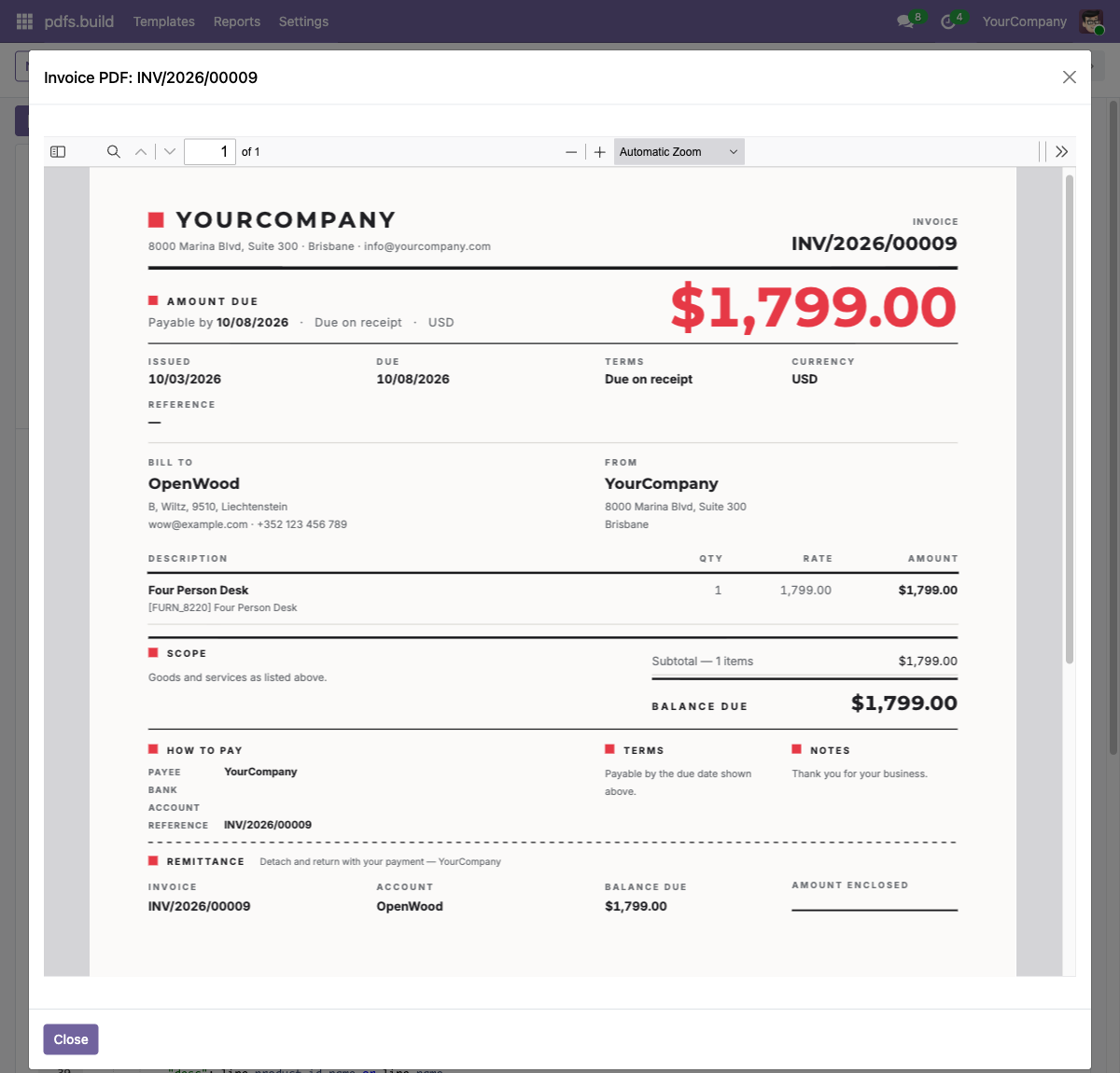
Helpers such as format_date, format_amount, image and html2plaintext are available, and empty Odoo fields are coerced to the type the schema expects. Preview Data shows the resulting JSON for a chosen record before you print.
Replace stock reports in place
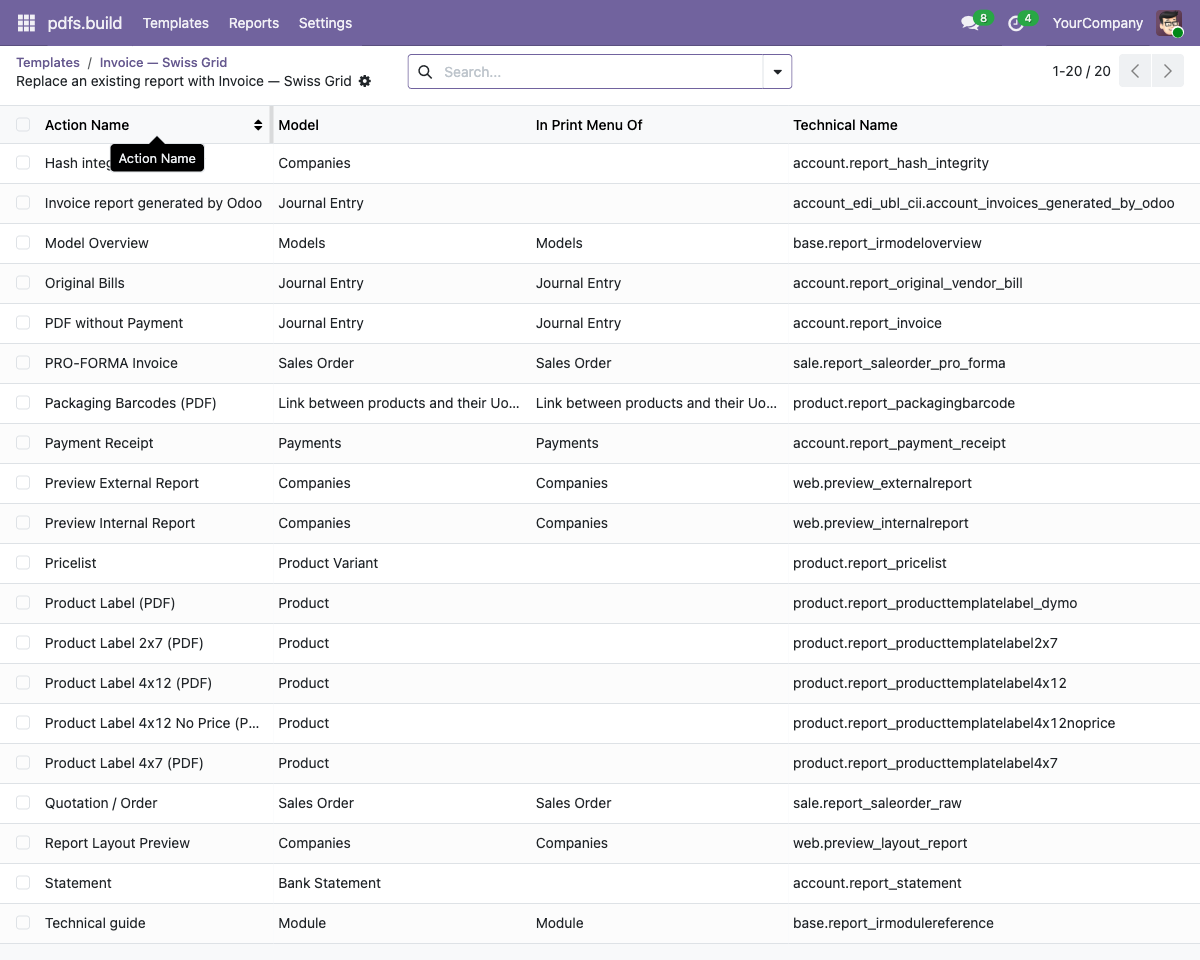
Take over the customer invoice, the quotation, delivery slips or any other QWeb PDF report. The report keeps its name, its place in the Print menu and its email templates.
Odoo's post-processing still runs
The module replaces only the rendering step. Attachments, Factur-X and UBL embedding, quote-builder pages and multi-record merging are still done by Odoo.
Preview before you print
Preview Sample PDF renders the template's own sample data; Preview PDF renders a real record. Both open in a viewer inside Odoo.
Versioned templates
Reports follow the latest published version by default, or pin a version number or a channel such as staging. A pinned report keeps the schema it was pinned to.
Choose what Odoo sees
Only published templates are synced, and archived ones stay hidden. Large organizations expose a handful of templates to Odoo and keep the rest where they are.
Typeset, not screenshotted
Documents are compiled by Typst: repeating table headers, correct page breaks and consistent fonts, without wkhtmltopdf. See why not a headless browser.
These templates take Odoo's own field names, so the module writes the data expression for you. Inside Odoo, Designs for Odoo lists them with previews and adds one in a click: copied into your organization, synced, and its report created on the right model. Your company's logo and document-layout colours come through from Odoo's settings. Two designs per document, one quiet and one with more presence.
Band header · Royal & bone · Montserrat + Lato
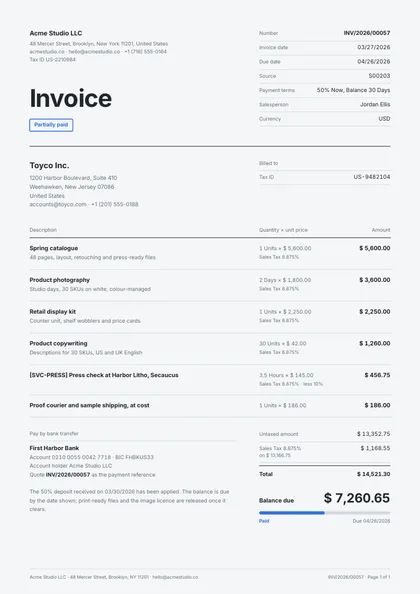
Minimal, type-led · Graphite & azure · Inter only
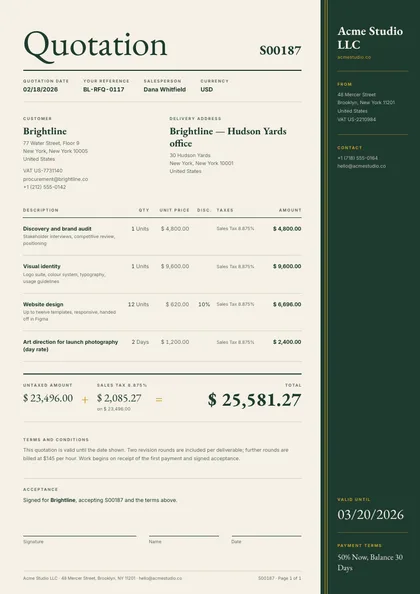
Side rail · Forest & sand · EB Garamond + Inter
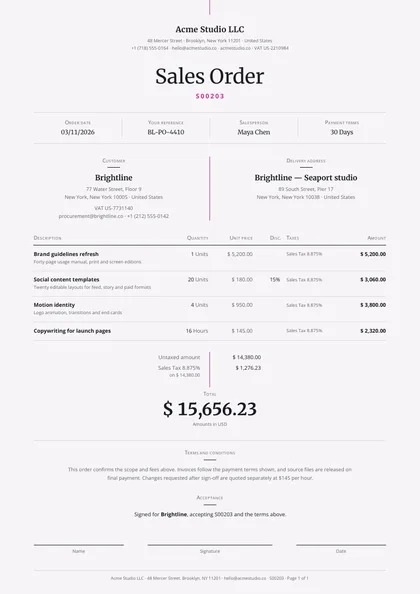
Minimal, type-led · Ink & magenta · Merriweather + Open Sans
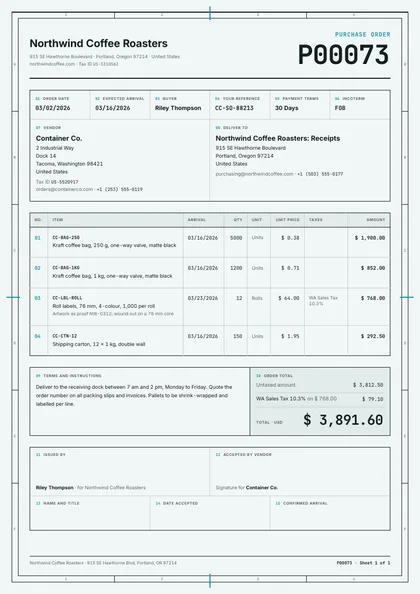
Boxed form planner · Basalt & cyan · JetBrains Mono + Inter
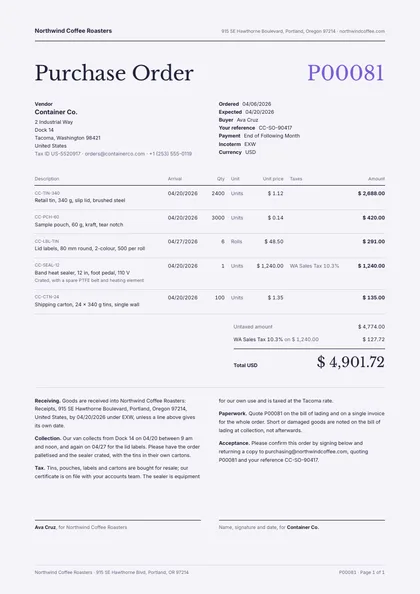
Minimal, type-led · Slate & violet · Libre Baskerville + Inter
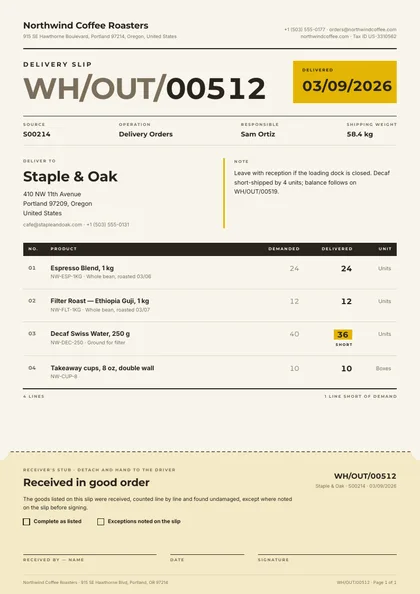
Perforated ticket · Bark & saffron · Montserrat + Inter
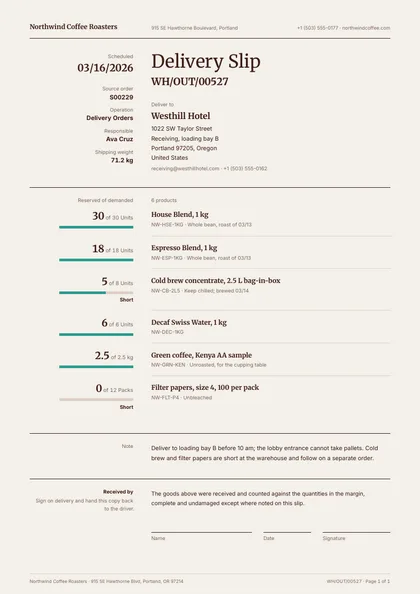
Minimal, type-led · Oxide & teal · Merriweather + Inter
| Odoo | 17.0, 18.0 or 19.0 on Odoo.sh or self-hosted. Odoo Online cannot install third-party modules. |
| pdfs.build plan | Starter or higher; see pricing. |
| Credentials | An API key (Settings → API Keys) and your organization ID, both entered once in Odoo's Settings. |
| Python | The requests package, which ships with every Odoo installation. |
| License | LGPL-3, source on GitHub. One branch per Odoo version, each tested against the official image. |
Not for the designs built for Odoo. Their fields are named after Odoo's own (partner_id, invoice_line_ids, amount_total, tax_totals), so the module writes the whole expression itself. Designs for Odoo, in the module, adds one of them in a click with its report already created; only a field Odoo does not have is ever left for you. Any other template, including your own, is mapped with one Python expression that the module prefills from the template's schema.
Odoo 17.0, 18.0 and 19.0, Community and Enterprise. Each version has its own branch on the Odoo Apps listing and on GitHub, and every branch runs the same test suite against the official Odoo image.
No. Odoo Online cannot install third-party modules. You need Odoo.sh or a self-hosted Odoo, which is where custom modules are installed anyway.
The module is free and open source (LGPL-3). Rendering goes through the pdfs.build API, which needs a Starter plan or higher; each printed document counts as one API render against your monthly quota.
Only the JSON your data expression builds for the printed record, sent to api.pdfs.build with your API key. Nothing else is read from your database, and the generated PDF is stored by Odoo exactly as a QWeb report would be.
Yes. Open a synced template and choose Use for Existing Report, then pick the stock report, for example the customer invoice or the sales quotation. From then on the Print menu, email attachments, the customer portal and every other place Odoo prints that report use your pdfs.build template. Odoo's post-processing, such as Factur-X or UBL embedding, still runs on the result.
A report follows the template's latest published version by default. If a change adds a field, Odoo refreshes the field list on the next sync so the data expression can be updated. You can also pin a report to a fixed version number, or to a channel such as staging, with the report's Version field.
Select them in a list and print as usual. Each record is rendered on its own and the PDFs are merged into one file, the same way Odoo merges QWeb reports.
The step-by-step walkthrough, including replacing the stock invoice, is in the blog post Print Odoo invoices and quotations with a pdfs.build template.
Start from an invoice or quotation in the template gallery, publish it, and map it to Odoo in an afternoon.