Odoo prints every PDF the same way: a QWeb HTML template is rendered, then
wkhtmltopdf turns it into a PDF. Changing how an invoice looks means editing
XML views, inheriting the right t-call, and fighting a headless browser over
page breaks. Most Odoo shops have a folder of such customizations that nobody
wants to reopen.
The pdfs.build PDF Templates module takes a different route. You design the document in the pdfs.build editor, as a Typst template with a JSON Schema, and the module renders Odoo records through it. Odoo keeps doing everything else: the Print menu, email attachments, portal downloads, attachment storage and multi-record merging all work unchanged, because the module only swaps the rendering step underneath Odoo’s own report pipeline.
It is free, LGPL-3, and available for Odoo 17.0, 18.0 and 19.0 on Odoo Apps and GitHub. This post walks through a full setup: install, connect, map a quotation template, then replace the stock customer invoice.
Before you start
- Odoo.sh or a self-hosted Odoo. Odoo Online (the odoo.com SaaS) cannot install third-party modules.
- A pdfs.build account on the Starter plan or higher. Rendering over the API is what the module does on every print. See pricing.
- An API key and your organization ID. Both are under Settings in the
pdfs.build app. Keys start with
prs_. - A published template. Drafts are not visible to the API. If you do not have one yet, open an invoice or quotation from the template gallery, adjust it, and publish.
1. Install the module
Download the module from Odoo Apps, or clone the branch that matches your Odoo version:
git clone --branch 19.0 https://github.com/pdfs-build/odoo.git pdfs-build-odooAdd the clone to your addons_path, restart Odoo, update the apps list and
install pdfs.build PDF Templates. The module depends only on base and
web, so it installs on Community and Enterprise alike. Its one Python
dependency, requests, ships with Odoo.
2. Connect it to your organization
Open Settings and find the pdfs.build section. Paste the API key and the organization ID, then click Test Connection. The module calls the API and tells you plainly if the key is wrong, if it belongs to a different organization, or if the plan does not allow API renders.
Click Sync Templates. Every published template in the organization is pulled in with its name, its fields and its sample data, and listed under the new pdfs.build app in the top menu.
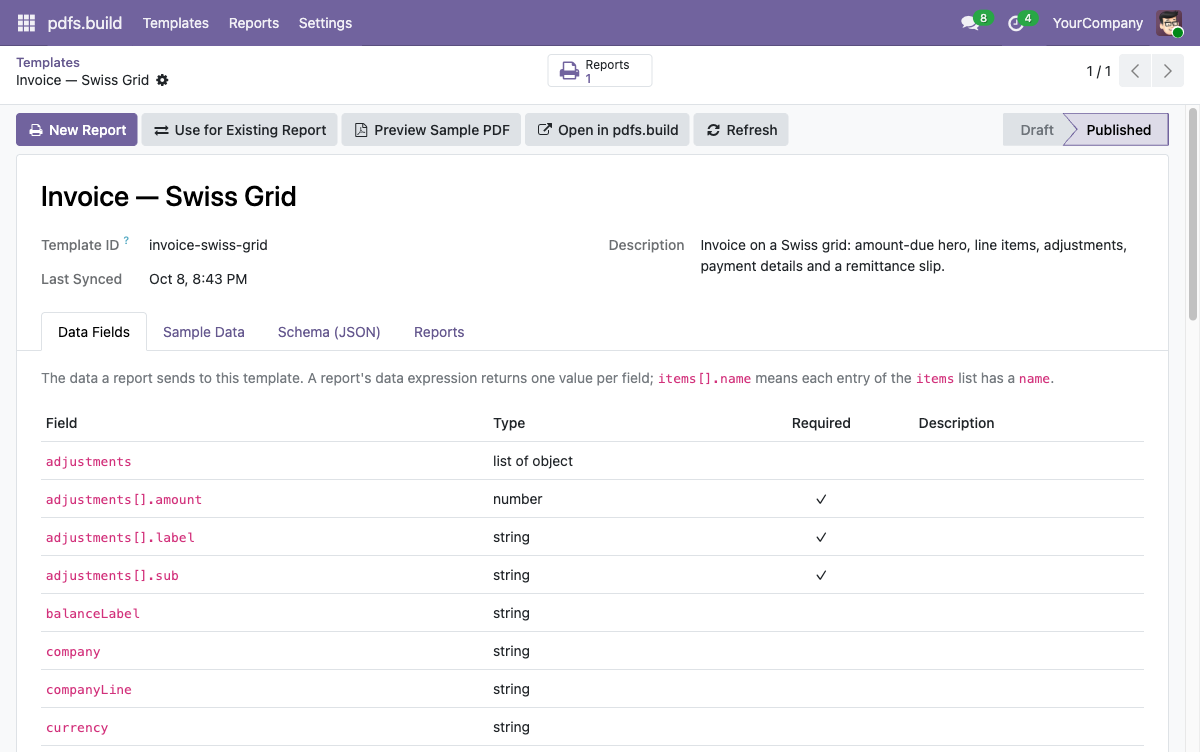
Two things worth knowing about the sync:
- Only published templates are synced, and only their published version. A draft you are still editing never shows up in Odoo by accident.
- Archive what Odoo should not see. If the organization has fifty templates and Odoo needs three, archive the rest. Later syncs leave archived templates archived.
3. Map a template to a model
Open a template and click New Report. Pick the Odoo model, for example
sale.order, and give the report the name that should appear in the Print
menu.
The important part is the Data tab. It holds one Python expression that is evaluated for each printed record and must return the data the template expects. The module prefills it from the template’s JSON Schema, with one entry per field and the field’s description as a comment, so your job is to replace the placeholders with Odoo fields.
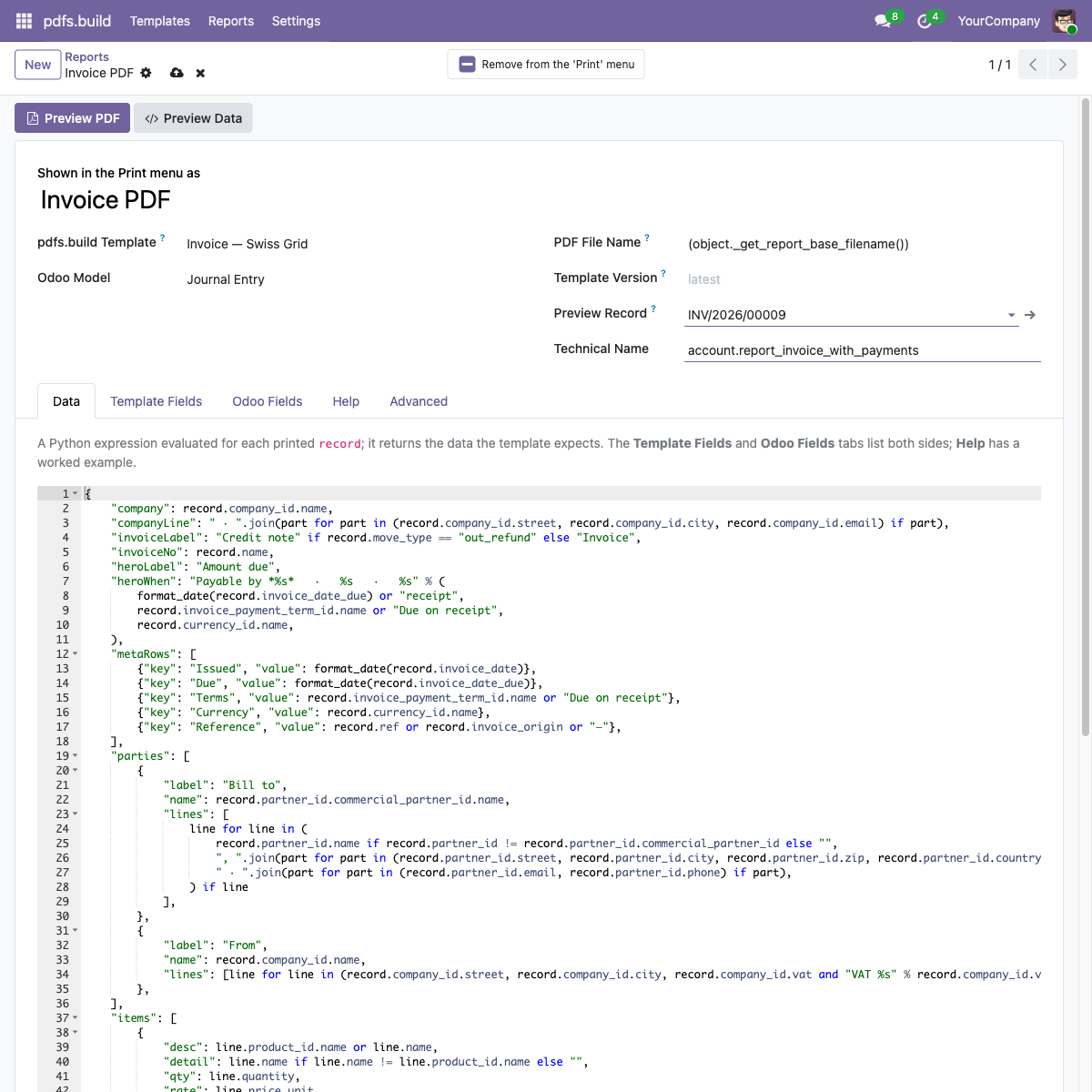
For a quotation it ends up looking like this:
{
    "quoteNumber": record.name,
    "issueDate": format_date(record.date_order),
    "clientName": record.partner_id.commercial_partner_id.name,
    "clientEmail": record.partner_id.email,
    "items": [
        {"name": line.product_id.name, "description": line.name, "amount": line.price_subtotal}
        for line in record.order_line
        if not line.display_type
    ],
    "total": record.amount_total,
    "notes": html2plaintext(record.note or ""),
    "logo": image(record.company_id.logo),
}
The form has three tabs that make this quick:
- Template Fields lists what the template expects, read from its schema.
items[].namemeans every entry of theitemslist has aname. - Odoo Fields lists the fields of the chosen model with their labels,
technical names and types, so you can look up
commercial_partner_idinstead of guessing it. - Help documents the helpers available in the expression:
format_date,format_datetime,format_amount(amount, currency),image(binary)for logos andhtml2plaintextfor rich-text notes, plusenv,userandcompany.
Empty Odoo fields are False, and the module coerces them to whatever the
schema asks for: an empty string, a zero or an empty list. Dates become ISO
strings. If a required field is still a placeholder, the API rejects the
render with the exact field name, so nothing half-rendered reaches a customer.
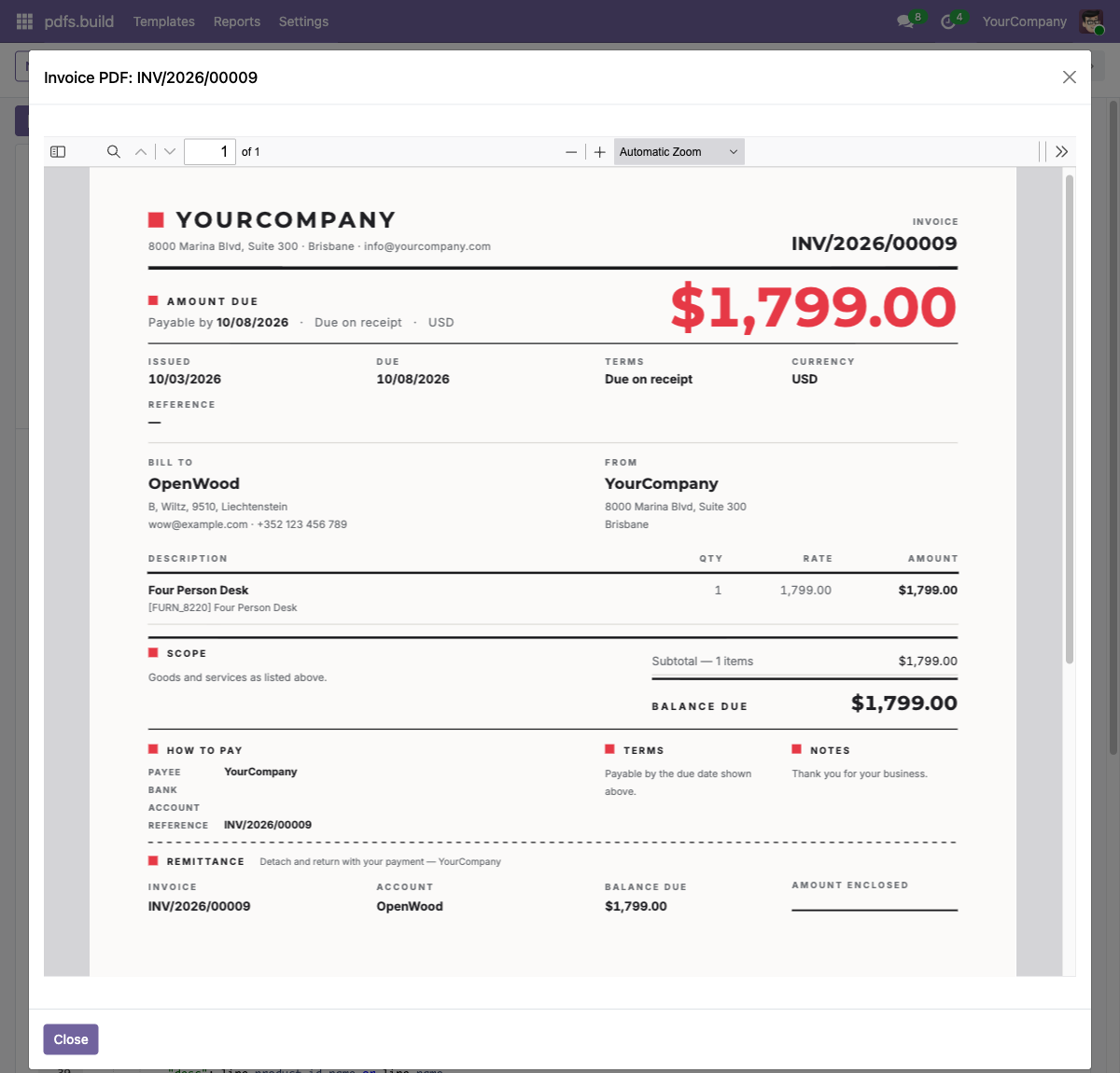
Click Preview Data to see the JSON for a chosen record, and Preview PDF to render that record for real. The PDF opens in a viewer inside Odoo.
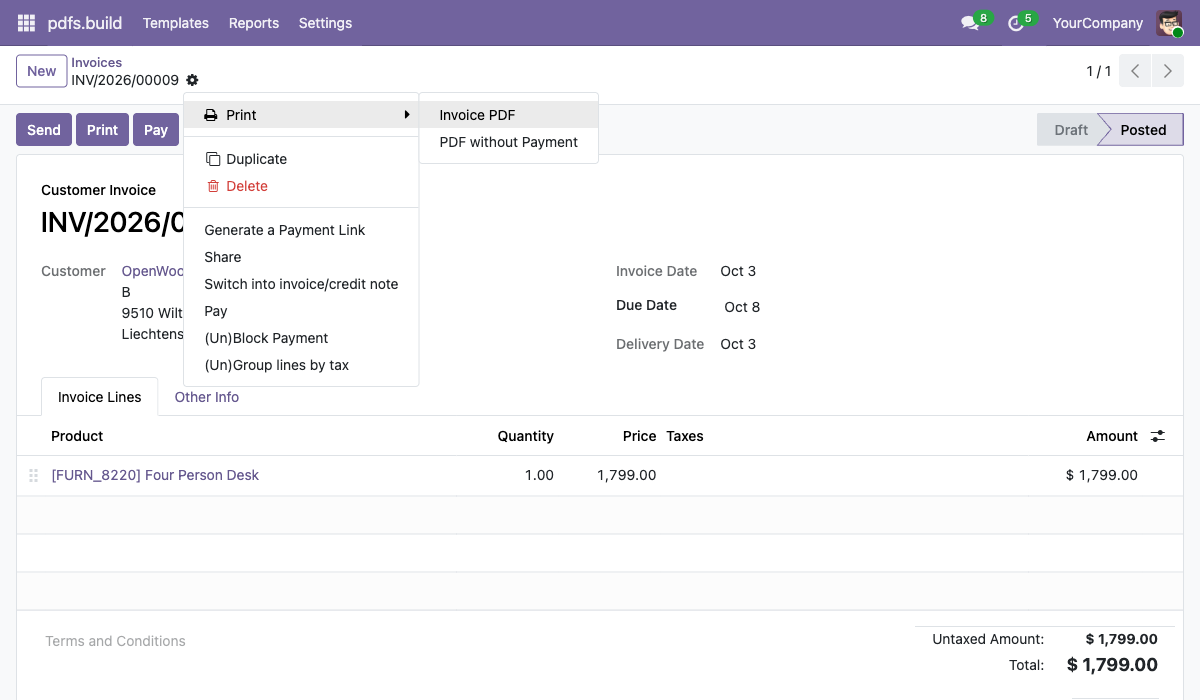
Save the report. It now sits in the Print menu of every sales order, and selecting several orders in the list and printing merges them into one PDF, one document per order.
Or skip the mapping: designs built for Odoo
The template gallery has an Odoo category: two
designs each for the invoice, the quotation, the purchase order and the
delivery slip, whose fields are named after Odoo’s own. partner_id is the
customer block, invoice_line_ids the lines, amount_total, tax_totals
and payment_state what they are in Odoo. In the module, Designs for Odoo
(on the Templates list and in Settings) shows them with previews; Add to
Odoo copies the design into your organization, syncs it and creates its
report on the right model, expression already written. Nothing is left to fill
in. They also read your company’s logo and
document-layout colours from Odoo’s settings, so a multi-company database
prints each company in its own colours without a second template.
4. Replace the stock invoice PDF
The step most people actually want. Instead of creating a new report, open the invoice template and click Use for Existing Report. The dialog lists every PDF report in the database that is not yet backed by a pdfs.build template. Pick Invoices, the report Odoo uses for the Print button, the Send & Print wizard and the customer portal.
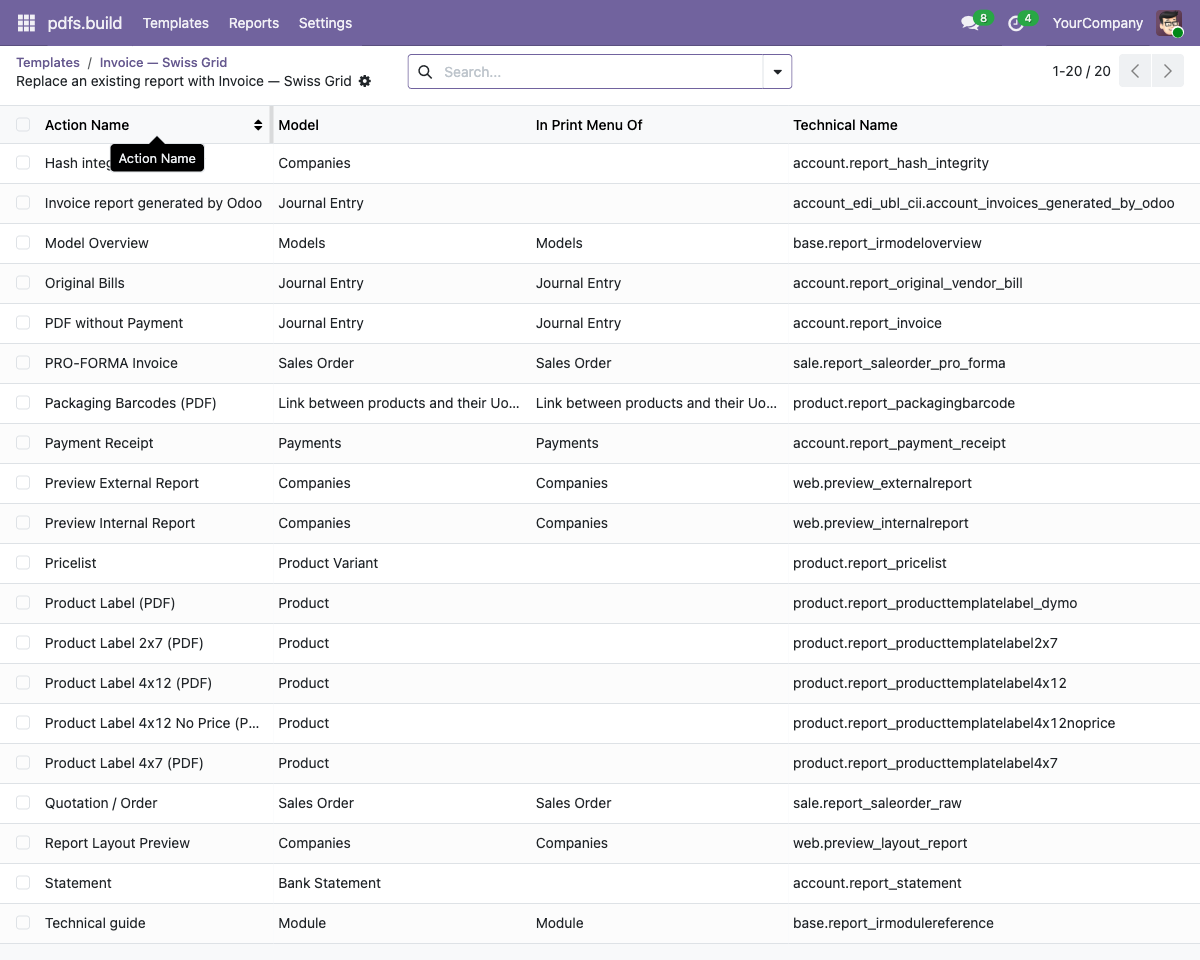
The report keeps its name, its model and every reference to it. Only the rendering changes. Fill in the data expression as before and from then on:
- the Print button on an invoice returns your template,
- Send & Print attaches your template to the email,
- the customer portal download is your template,
- and the PDF is stored as an attachment the same way as before.
Odoo’s post-processing still runs on the result. If you use account_edi or
Factur-X, the XML is embedded into the pdfs.build PDF; the sales quote builder
still prepends and appends its pages. The module takes care to call Odoo’s
report pipeline rather than bypass it, which is what keeps those modules
working.
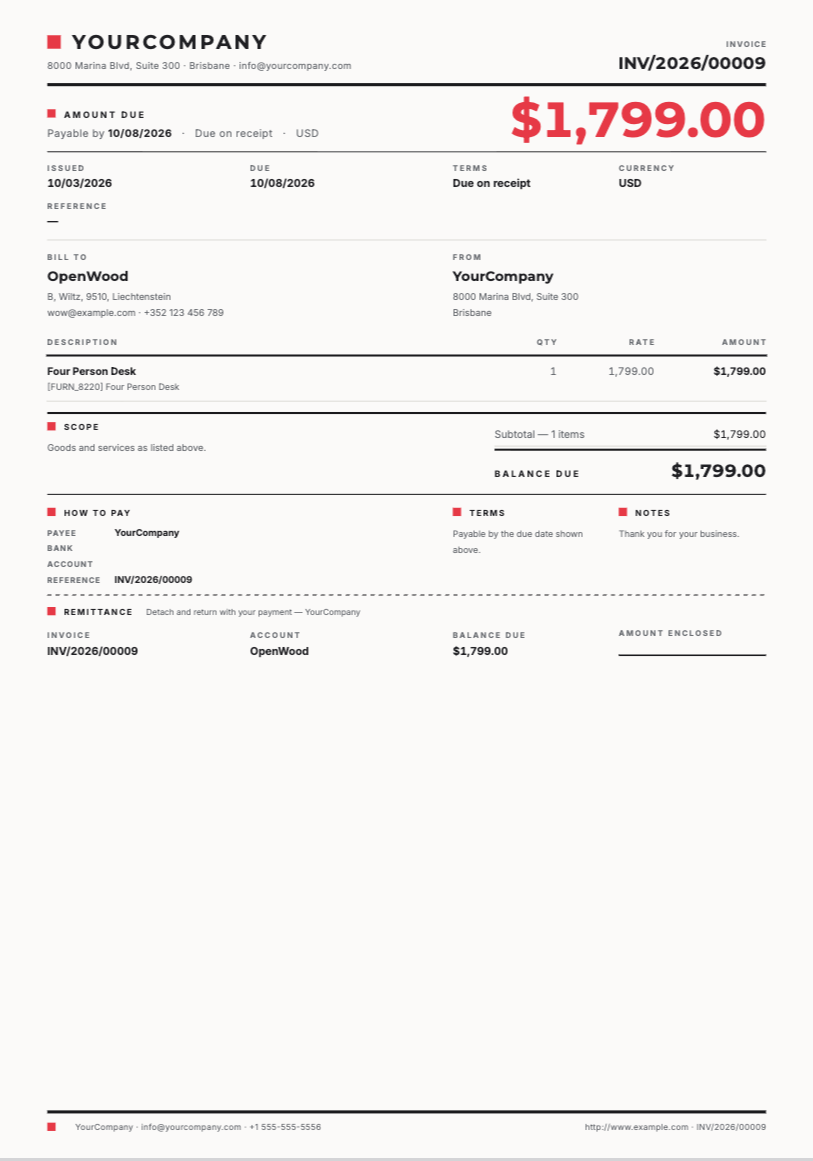
To go back, clear the template on the report (Settings → Technical → Reports) and Odoo renders the original QWeb view again.
Keeping Odoo and the template in sync
Templates change. A report follows the template’s latest published version by default, so publishing a new version on pdfs.build changes what Odoo prints on the next render. If the new version adds a field, run Sync Templates: the field list in Odoo is refreshed and the Template Fields tab shows what is now missing from the data expression.
For a stricter setup, the report’s Version field lets you pin a version
number, or a channel such as staging. A pinned report keeps the schema of the
version it was pinned to, so a change on pdfs.build cannot alter a production
invoice until you decide it should.
What leaves your server
Only the data the expression returns for the printed record, sent over HTTPS
to api.pdfs.build with your API key. The module reads nothing else from your
database and stores nothing on pdfs.build beyond the render log. Each printed
document counts as one API render against your monthly quota.
Where to go from here
- Install from Odoo Apps, or read the source on GitHub.
- The integration page has the short version, the FAQ and the designs built for Odoo.
- Questions, or a report you cannot get to map? Write to [email protected].